Overview: The KDP Paperback Content Screen
When publishing a paperback on Amazon Kindle Direct Publishing (KDP), the second tab—Paperback Content—is where you upload your interior and cover files.
Amazon requires two separate files:
- The Interior Manuscript PDF (
main.pdf): All front matter, body chapters, and back matter compiled to your exact trim size without bleed. - The Full-Bleed Wraparound Cover PDF (
cover.pdf): A single unified file containing the back cover, spine, and front cover plus $0.125\text{ in}$ ($3.175\text{ mm}$) bleed on all outer edges.
Step 1: Configure Your Print Options
Before uploading any files, you must configure Amazon's print settings to match your LaTeX template's geometry.
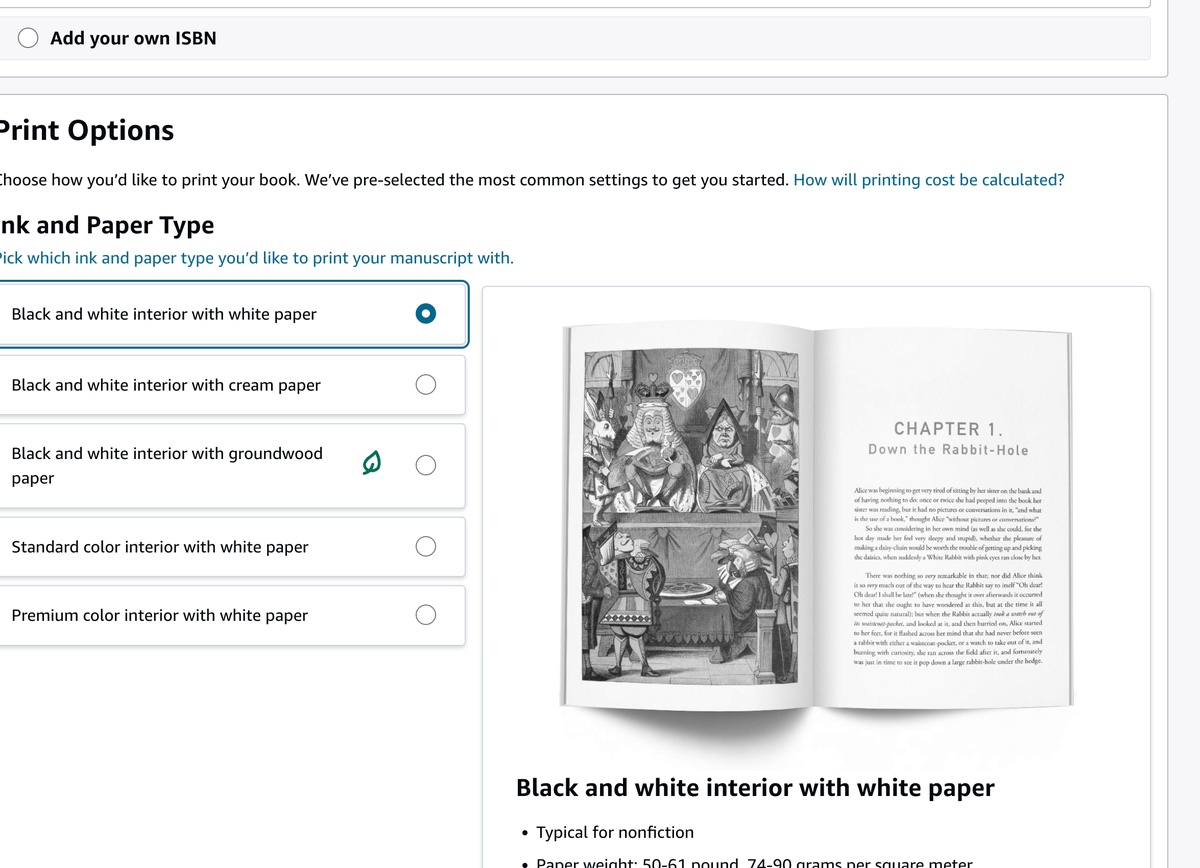
- Ink and Paper Type:
- For Self-Help, Fiction, Narrative Non-Fiction, and Memoirs: Select Black and white interior with cream paper (50# Cream).
- For Technical manuals, Workbooks, or Journals: Select Black and white interior with white paper.
- Trim Size:
- Click Select a different size to pick your exact trim:
5.06" × 7.81" (12.85 × 19.84 cm)— UK B-Format (Verve Modern Bestseller).5.5" × 8.25" (13.97 × 20.96 cm)— Standard US Trade Paperback (Commercial Playbook & Penguin Folio).6" × 9" (15.24 × 22.86 cm)— Standard Treatise & Academic Trim.
- Click Select a different size to pick your exact trim:
- Bleed Settings:
- Select No Bleed. (Your interior pages do not bleed off the edge; only the cover file includes bleed).
- Paperback Cover Finish:
- Matte: Soft, velvety, non-reflective finish (recommended for literary, self-help, and modern nonfiction).
- Glossy: High-shine, vibrant contrast (popular for commercial business playbooks and thrillers).
Step 2: Upload Your Manuscript Interior (main.pdf)
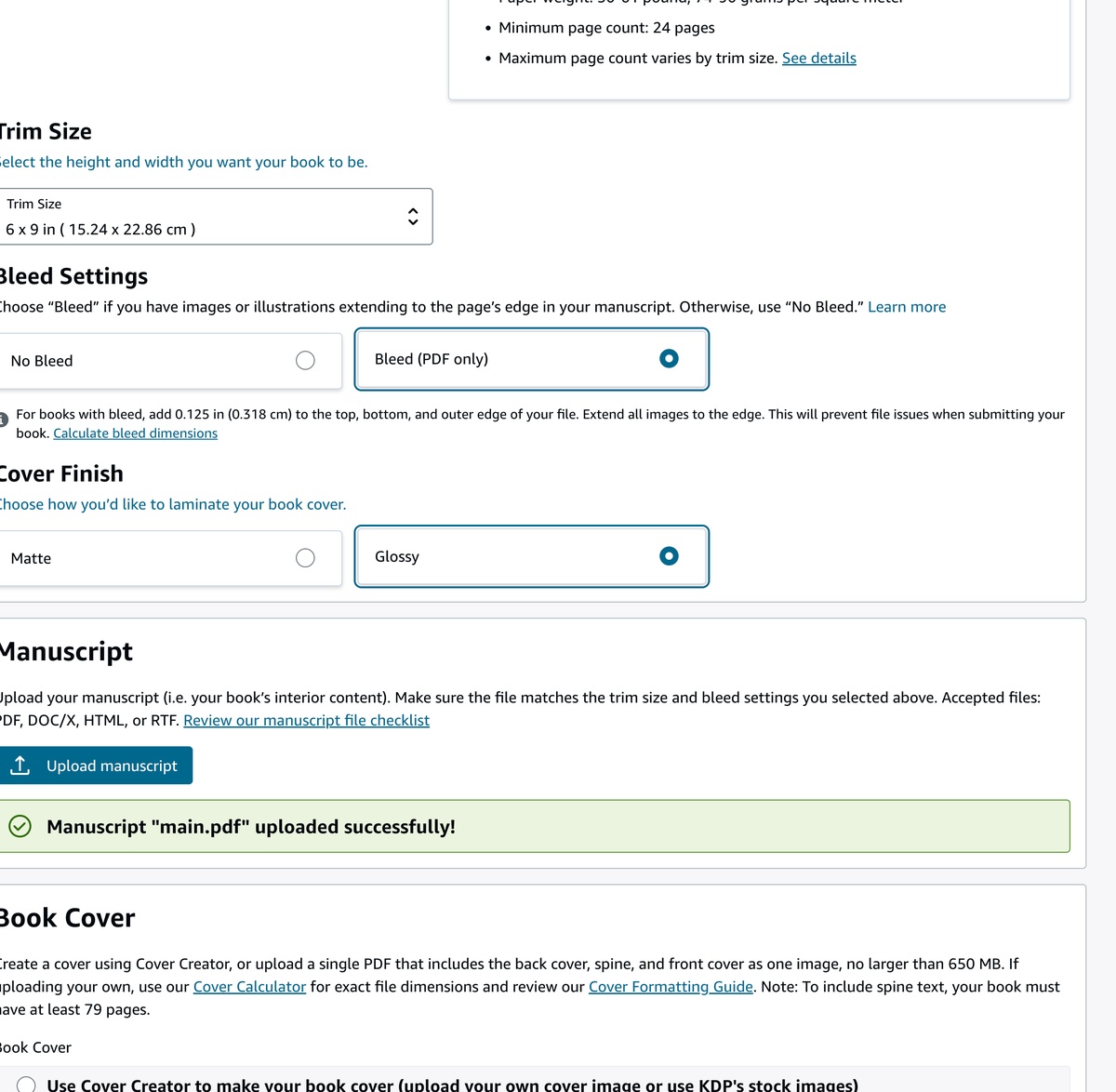
- Click Upload paperback manuscript.
- Select your compiled
main.pdffrom BookTemplatesPro. - Amazon will process the file, extract the exact page count, and verify that the embedded fonts and MediaBox match the chosen trim size.
- You will see a green confirmation badge: Manuscript "main.pdf" uploaded successfully!
Step 3: Upload Your Wraparound Cover (cover.pdf)
Under the Book Cover section:
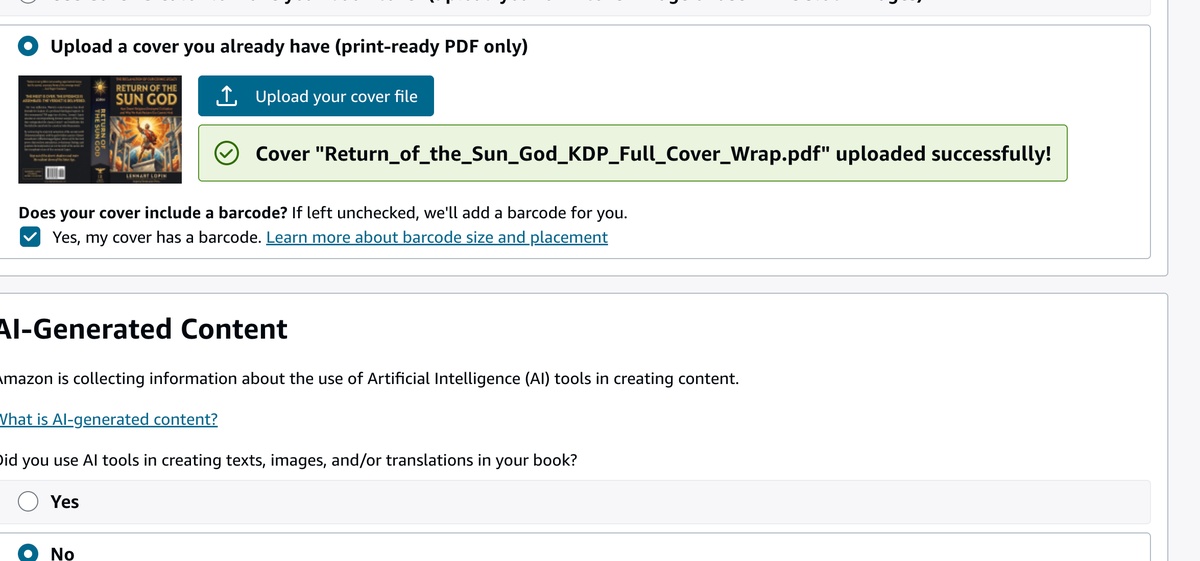
- Select the radio button: Upload a cover you already have (print-ready PDF only).
- Click Upload your cover file and select your compiled
cover.pdf. - Barcode Checkbox:
- If you used our LaTeX cover template with an integrated vector barcode, check: "Yes, my cover has a barcode".
- If your cover does not include a barcode, leave it unchecked and Amazon will automatically print a standard EAN barcode in the lower right area of your back cover.
Step 4: Launch the KDP Print Previewer
- Click Launch Previewer.
- Amazon's automated preflight raster engine will check:
- Gutter Clearance: Ensuring text does not cross the minimum binding threshold.
- Spine Center Alignment: Ensuring the spine title is centered within the calculated fold lines.
- Transparency & Color Profiles: Ensuring zero transparency traps.
- If using BookTemplatesPro templates, you will receive zero quality warnings. Click Approve in the bottom right corner to lock in your print files.